
Getting Started Guide
Welcome! This guide will walk you through installing the ai sp@ce client and connecting to our test private server.
ai sp@ce was originally free-to-play, with the client freely available for download. Since aisp.jp is no longer online, the original files now need to be downloaded from an alternative source.
Download the Game
Download the latest client from one of the links below:
- Archive.org — Slow option
- Mega.nz — Fast option
- Torrent
Extract the files anywhere on your PC, for example:
C:\Games\aispace\
Download the Launcher
- Download the latest Launcher from GitHub.
- Extract
aisp.launch.exeandaisp.localehook.dllinto the same directory asai sp@ce.exe.
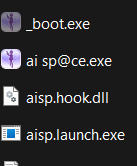
Note: The Launcher is relatively new, so Windows may display a security warning when you first run it. The source code is publicly available if you would like to review it yourself.
Linux
The Launcher can be run through Wine. Proton has not been tested.
You may need to set LANG="ja_JP.UTF-8" as an environment variable.
Create Your Account
- Register and create a new account. Usernames are case-sensitive.
- Once your account has been created, open the Launcher, make sure it's set to Stable, and click Start Game.
- On the login screen, enter your username and password.
- Once you're in, customize your character and fill in your profile details.
First Steps
- Once you've created your character, you'll be placed in Akihabara.
- After speaking to Rin, head over to the Sotokanda Building.
- Speak to Shinju to choose your Home Island and preferred Doll personality.
- Head back to the station and talk to the Station Staff. He'll take you to the Shopping District, where you can buy clothes and furniture.
- Once there, head down the path to the left and walk through the MapLink. You'll be asked whether you want to go to the School, Shopping District, or Residential Area. Selecting Residential will take you to MyRoom.
- Once inside your room, click the door to start the introduction event for your new Charadoll! This is currently the only quest/event that has been implemented.
For more information about your room and its features, have a look at our post about MyRoom.
You can also use /money 10000 to give yourself some AiPoints and NicoPoints to spend at the shops in the Shopping District!
Visit the Commands page for a list of Map IDs that you can use to visit other maps.
Having problems? Check the FAQ for known issues and solutions.
Need further help? Hop into our Discord and ask — we're happy to help you get set up.